




































How HTTPS Works: What That Padlock Icon Actually Means
HTTPS encrypts your connection with SSL/TLS certificates. Here's what the browser padlock really protects, and what it doesn't, explained simply.

Look at your browser's address bar right now. That small padlock icon sitting next to the web address is doing more quiet, constant work than almost anything else you'll interact with online today — and most people have no idea what it's actually checking.
Why plain HTTP was never enough
Every website you visit runs on HTTP (HyperText Transfer Protocol), the basic set of rules browsers and servers use to exchange pages. The problem with plain HTTP is that it sends everything in the open. If you log into your bank's website over HTTP on public Wi-Fi at a railway station or airport, anyone sharing that network with the right tools can watch your password travel across the wire in readable text.
HTTPS (the 'S' stands for Secure) fixes this by wrapping that same HTTP traffic inside an encryption layer called TLS — Transport Layer Security, the modern version of what used to be called SSL (Secure Sockets Layer). People still say "SSL certificate" out of habit even though actual SSL was retired years ago for being insecure. Encryption, in plain terms, just means scrambling data with a mathematical key so that only the intended recipient can unscramble and read it.
What actually happens when you connect
When your browser connects to an HTTPS site, it doesn't just start exchanging data. First it performs what's called a TLS handshake, a rapid back-and-forth where your browser and the website's server agree on an encryption method and exchange digital keys, all before a single byte of your actual request is sent. This takes a fraction of a second and happens on every single HTTPS page load, which is why fast, modern connections don't feel any slower for it.
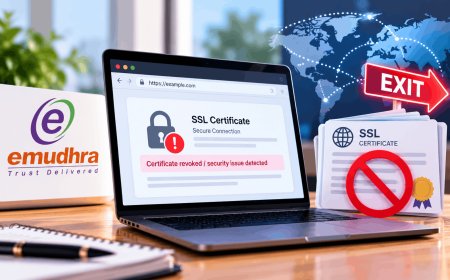
Part of that handshake involves the site proving who it actually is. That's where a certificate authority (CA) comes in — an independent, trusted organization that verifies a website genuinely owns the domain it claims to, then issues it a digital certificate as proof. Your browser keeps a built-in list of CAs it trusts. If a site presents a certificate signed by one of them, you get the padlock. If the certificate is missing, expired, or doesn't match the domain, your browser throws up a warning page instead of quietly letting you in.
- Encryption — stops anyone on the same network from reading your data in transit.
- Authentication — confirms you're actually talking to the real site, not an impostor.
- Integrity — guarantees the data wasn't altered somewhere between the server and your screen.
That third point matters more than people realize — without it, an attacker on a shared network could theoretically inject extra code into a page as it loads, even without reading your password.
A padlock doesn't mean a site is trustworthy. It means your connection to that site is private. A scam page can have a valid certificate too.
Why this matters more in India than almost anywhere else
India processes more digital payment transactions than any other country on earth, largely through UPI, and most of that activity happens on mobile data or shared Wi-Fi in cafes, trains, and offices. That makes HTTPS less of a technical footnote and more of basic financial hygiene. The Reserve Bank of India's guidelines for digital lending and payment platforms assume encrypted connections as a baseline, and MeitY has pushed government websites toward mandatory HTTPS for exactly this reason — a huge share of India's internet users are logging into banking and government portals over networks they don't control.
It's also directly relevant to the kind of phishing fraud that's become common with UPI and net banking scams. Fraudsters increasingly register look-alike domains with valid HTTPS certificates of their own — certificates are cheap and easy to get now, including free ones — so the padlock alone won't save you from a well-made fake banking page. Checking the actual domain name still matters more than the icon next to it.
A quick way to actually check
Next time you're about to enter a password or card details on an unfamiliar site, it takes five seconds to verify what you're connecting to:
- Confirm the address bar shows a padlock and starts with https://, not just http://.
- Click the padlock and check the certificate is issued to the actual company name, not a generic or unrelated one.
- Look closely at the domain spelling — scam sites often use a near-identical domain with a swapped letter or extra word.
- Never proceed past a browser warning that says a connection "is not private," no matter how urgent the page claims your situation is.
If you're curious how your browser even finds that server's address before any of this encryption begins, that's a separate piece of plumbing worth understanding — we've covered how DNS resolves website addresses in more detail.
HTTPS isn't something you need to configure or think about as a user — it's already running in the background on nearly every site you visit. But understanding what that padlock actually promises, and just as importantly what it doesn't, is the difference between browsing with real awareness and just trusting a green icon because it looks official. The next time you're about to type in a password on a network you don't own, that five-second check is worth more than any antivirus software you've installed.
What's Your Reaction?
 Like
0
Like
0
 Dislike
0
Dislike
0
 Love
0
Love
0
 Funny
0
Funny
0
 Angry
0
Angry
0
 Sad
0
Sad
0
 Wow
0
Wow
0